
Quick save · key takeaways
- Download only from the official picker on bazzite.gg or its download server.
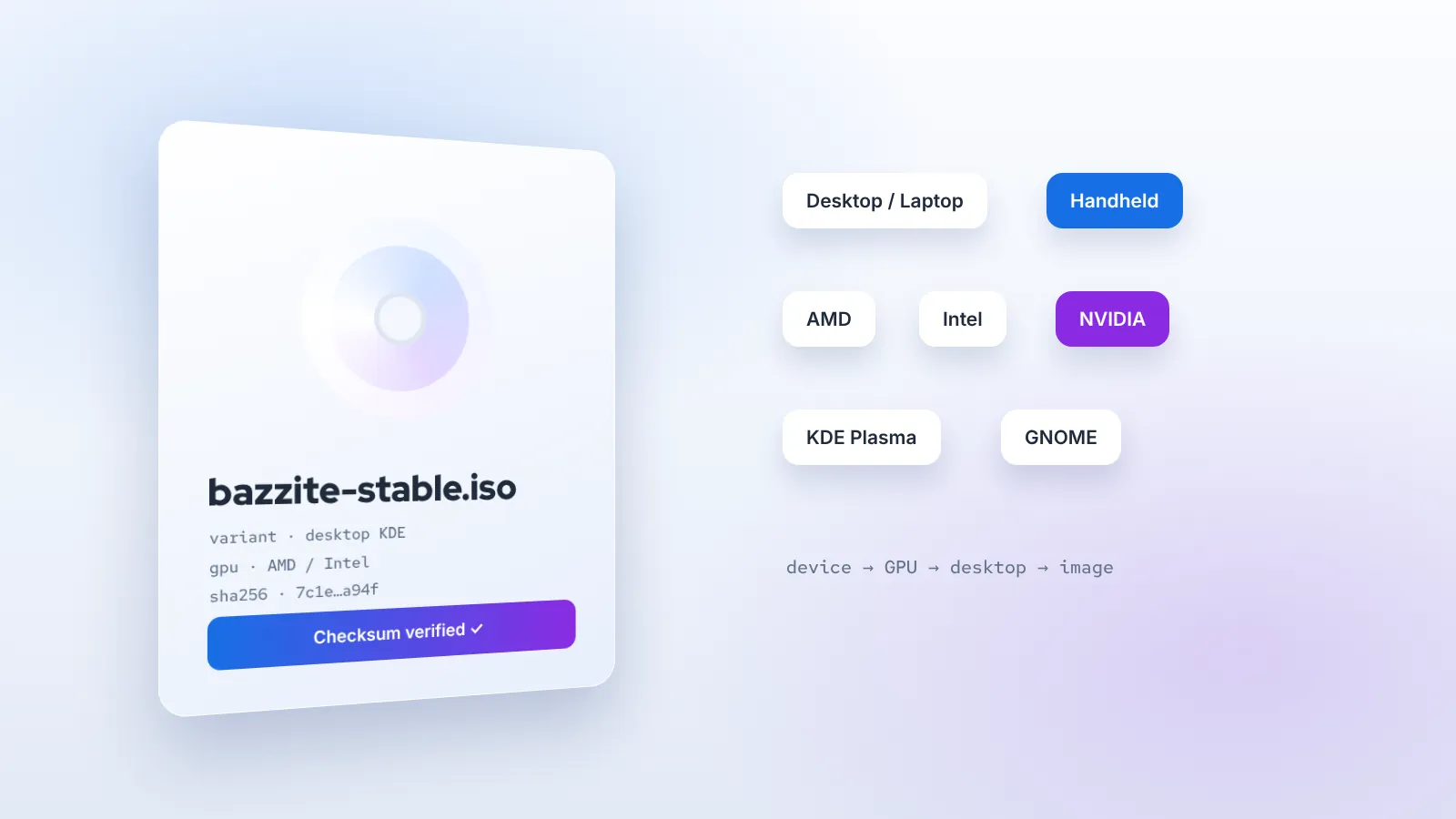
- Choose desktop or deck, then your GPU vendor and desktop environment.
- Verify the SHA-256 checksum before flashing.
- The source ZIP holds build recipes for custom images and is not an installer.
Searching for a Bazzite OS download returns a surprising number of mirrors, re-uploads and "direct links". Almost none of them are necessary, and some are outdated or worse. Bazzite publishes its installers through one official picker, and the right file depends on three facts about your machine. This guide explains where to download Bazzite safely, how the image variants differ, how to verify what you downloaded, and how the source code archive fits in.
Where to download Bazzite
There are exactly two places you should get Bazzite from:
- The image picker on bazzite.gg. It asks about your hardware and desktop preference, then offers the matching ISO, along with notes for specific devices.
- The download server linked from the project, download.bazzite.gg. This is where the picker's files live. It is useful if you already know the exact image name you want.
That is the complete list for installers. Third-party file-sharing sites, "portable" builds and pre-modified ISOs add risk without adding anything useful. Because Bazzite is image-based, an installer that has been tampered with could install a system that then follows a different update source; there is no reason to take that chance when the official files cost nothing.
We do not host ISO files on this site. Our image finder helps you narrow the choice and then sends you to the official picker for the actual download.
The three questions that decide your ISO
Every Bazzite image is built from the same recipe, then specialised along three axes. Answer these and you know which file you need.
1. Desktop image or deck image?
The desktop images boot to a normal KDE Plasma or GNOME desktop, with Steam available as an application. They suit desktop PCs and laptops that you use with a keyboard and mouse.
The deck images boot straight into Steam Game Mode, the full-screen controller interface, and include extras for handhelds: input mapping through InputPlumber, power and fan controls, a performance overlay and the option to add Decky Loader plugins. They are meant for Steam Deck, other supported handheld PCs, and living-room PCs connected to a TV. A desktop session is still available from Game Mode when you need it.
2. Which graphics vendor?
AMD Radeon and Intel graphics are handled by the open-source Mesa drivers included in the standard images. NVIDIA GeForce cards need an NVIDIA image, which includes NVIDIA's kernel modules built and tested with the matching kernel. Within NVIDIA, the generation matters:
- GTX 16-series, RTX 20-series and newer (Turing and later) use NVIDIA's open kernel modules and have the broadest support.
- GTX 900 and 1000-series (Maxwell and Pascal) are not supported by those open modules and depend on NVIDIA's long-term driver branch. The project publishes LTS-based NVIDIA builds; check the picker to confirm your card is still covered before downloading.
- Laptops with an Intel or AMD integrated GPU plus an NVIDIA discrete GPU should take the NVIDIA image.
3. KDE Plasma or GNOME?
KDE Plasma is the default, with a taskbar-style layout and very deep customisation. GNOME offers a cleaner, gesture-driven workflow. Images with "gnome" in their name use GNOME; the others use KDE. Both include the same gaming stack, so pick the one you will enjoy using. Our Bazzite UI tour compares them in detail.
The main variants at a glance
| Image | Boots into | Best for |
|---|---|---|
bazzite | KDE Plasma | AMD or Intel desktops and laptops |
bazzite-gnome | GNOME | AMD or Intel machines, GNOME users |
| NVIDIA desktop images | KDE Plasma or GNOME | GeForce desktops and hybrid laptops |
bazzite-deck | Steam Game Mode, KDE desktop | Steam Deck, supported handhelds, HTPCs |
bazzite-deck-gnome | Steam Game Mode, GNOME desktop | The same devices with GNOME |
bazzite-dx and relatives | As the base image | Developers; installed by rebasing |
Exact names for NVIDIA images have changed over time, which is why the table describes them rather than quoting a name that may be out of date. The picker always shows the current one.
What you are actually downloading
A Bazzite ISO is an installer that carries a complete system image. That is why the file is several gigabytes even though you have not downloaded any games yet. When you install, the image is written to your drive as the first deployment; later updates pull newer versions of the same image from the project's container registry, not from the ISO.
Two consequences are worth knowing:
- The ISO does not need to be the latest build. An installer from a few weeks ago will update itself to the current image on first boot. You only need a new ISO when your hardware needs a newer kernel just to install.
- You choose your variant at download time, but you are not locked in. Switching from desktop to deck, KDE to GNOME, or to an NVIDIA image is a rebase from inside the running system. Your files stay where they are.
Verifying your Bazzite download
Large downloads occasionally arrive corrupted, and a corrupted ISO produces confusing installer errors. A checksum comparison takes a minute. The picker and download server publish a SHA-256 checksum for each ISO. Compute the checksum of your file and compare the two strings; they must match exactly.
On Windows
Open PowerShell in your downloads folder and run:
Get-FileHash .\bazzite-stable-amd64.iso -Algorithm SHA256Replace the file name with the one you downloaded. The older certutil -hashfile <file> SHA256 command gives the same result.
On macOS
shasum -a 256 ~/Downloads/bazzite-stable-amd64.isoOn Linux
sha256sum ~/Downloads/bazzite-stable-amd64.isoIf the values differ, delete the file and download it again, ideally on a wired connection. Do not try to flash an ISO that fails verification.
Signatures and supply-chain checks
Checksums prove the file arrived intact; signatures prove who produced it. Since the Bazzite 44 release, the project has published signed ISOs, build attestations and software bills of materials (SBOMs), and it uses OpenSSF security scanning in its pipeline. The installed system images are also signed, so updates can be verified against the project's key. For most users, downloading from the official picker and checking the SHA-256 value is enough; organisations with stricter requirements can verify the signatures using the instructions in the documentation.
Writing the ISO to USB
Once verified, write the ISO to a USB drive of 16 GB or more using Fedora Media Writer, balenaEtcher or Rufus in DD mode. Copying the ISO onto a stick as a normal file does not make it bootable. The full process, including firmware settings and Secure Boot, is covered in our Bazzite install guide.
The source ZIP: what it is and who needs it
You may also find a link to a ZIP archive of the Bazzite repository, such as the main-branch archive on GitHub. That file is not an installer. It contains the Containerfile, build scripts, system configuration and ujust recipes that the project's continuous integration uses to produce the images.
It is useful if you want to:
- Read exactly what goes into a Bazzite image before you trust it.
- Build a custom image derived from Bazzite, adding or removing packages for your own fleet of machines.
- Contribute fixes upstream by studying how a recipe works.
If you only want to play games, ignore the ZIP and use the ISO. Building your own image is rewarding, but it means maintaining that image yourself.
Downloading without a USB stick: rebasing
If you already run Fedora Silverblue, Kinoite or another Universal Blue image, you can skip the download entirely. A rebase switches your existing installation to Bazzite by pulling the image directly from the registry:
rpm-ostree rebase ostree-unverified-registry:ghcr.io/ublue-os/bazzite:stableReplace bazzite with the variant you want, reboot, and you are on Bazzite with your home folder intact. The documentation describes switching to the signed image reference afterwards.
Stable, testing and update channels
Bazzite publishes images on more than one channel. Stable is what the picker offers and what nearly everyone should use. A testing channel receives changes earlier so that volunteers can catch regressions before they reach stable; during the Fedora 44 transition in 2026, for example, the deck images spent extra time in testing before promotion. Unless you are deliberately helping test, stay on stable. You can always roll back to an earlier stable build if a new one causes trouble.
A pre-download hardware check
Before you commit, take two minutes to confirm the machine is a good fit:
- 64-bit x86 processor. Bazzite targets x86-64 PCs. ARM devices such as most tablets and Apple Silicon Macs are not supported.
- UEFI firmware. Nearly every PC from the last decade qualifies.
- Supported GPU. Any reasonably recent AMD or Intel GPU, or an NVIDIA card covered by the NVIDIA images.
- Your handheld model. If you are installing on a handheld other than a Steam Deck, read its page in the official documentation. Some devices have fully working controls and power management; newer ones may still be in progress.
- Games you cannot live without. If a particular online game is essential, check whether its anti-cheat supports Linux before switching.
Downloads to avoid
- Re-hosted ISOs on file lockers, torrent indexes or video descriptions. You cannot verify their origin.
- "Pre-activated" or "pre-configured" builds. Bazzite needs no activation, and pre-configuration defeats the image-based update model.
- Very old ISOs archived elsewhere. They may predate support for your hardware or the current signing keys.
- Scripts that "convert" Fedora Workstation into Bazzite. A traditional Fedora install cannot become an atomic one in place; use an ISO or rebase from an atomic system.
Download troubleshooting
The download is very slow or keeps stopping
Large files stress unstable connections. Use a wired connection if you can, pause other downloads, and use a browser or download manager that can resume interrupted transfers. If the official server is busy right after a release, try again later rather than looking for an unofficial mirror.
My browser warns about the file
Some browsers flag large, uncommon files by default. As long as the file came from the official picker or download server and the checksum matches, the warning is about rarity, not danger.
Windows says the ISO is not a valid disk
Windows can mount ISO files, but a Bazzite ISO is meant to be written to USB, not opened in Explorer. Use one of the flashing tools instead.
Keeping an installer on hand
Because updates come from the registry rather than the ISO, you do not need to re-download Bazzite regularly. It is still sensible to keep a recent installer on a spare USB stick, especially if you look after several machines or a handheld you travel with. A working installer lets you reinstall quickly if a drive fails, or set up a friend's PC without waiting for a download. Refresh it every few months, or whenever a new major release brings support for hardware you own.
Finally, label the stick with the image name and date. When you pick it up months later, you will know immediately whether it is the desktop or deck variant, which saves a confusing installation on the wrong device.
Summary
The safest Bazzite OS download is the one the official picker offers you. Decide between the desktop and deck families, match your GPU vendor and NVIDIA generation, choose KDE or GNOME, then verify the SHA-256 checksum before flashing. The source ZIP is for people building custom images, not for installation. And if you already run a Fedora Atomic system, a rebase gets you there without any download at all.
Frequently asked questions
Is the Bazzite download free?
Yes. Bazzite is free to download and use, and its build recipes are open source under the Apache-2.0 licence.
How big is the Bazzite ISO?
Several gigabytes, because it contains a complete system image. Sizes vary by variant; NVIDIA and deck images are typically larger. Use a USB drive of at least 16 GB.
Can I use one ISO for every machine?
Technically you can install any image and rebase afterwards, but it is simpler to download the variant that matches each machine's GPU and form factor from the start.
Is there a live mode to try Bazzite without installing?
The ISO is designed as an installer rather than a full live session. Installing to an external SSD is the usual way to try Bazzite without touching your internal drive.